
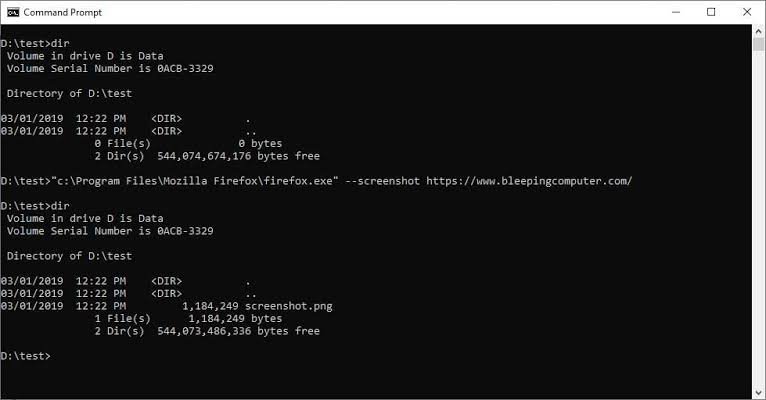
Command Prompt (CMD) is a powerful command-line interpreter built into the Windows operating system. While most users navigate their computers using a mouse to click through a Graphical User Interface (GUI), CMD allows you to interact directly with your system using text-based commands.
Though it may look intimidating to beginners, learning to use the Command Prompt can drastically speed up your workflow, help you troubleshoot network issues, and allow you to uncover deep system settings that are otherwise hidden.
How to Open Command Prompt
There are several ways to open the terminal in Windows, but the search method is the quickest and allows you to launch the application with administrative privileges.
1.Open the Start Menu:Or press the Windows key on your keyboard.
Click the Start button on your Windows taskbar.
2.Search for the application:
Type cmd or Command Prompt into the search bar.
3.Launch the app:Run as administrator for system-level tasks.
Click the Command Prompt app from the search results. If you are executing system commands or making deep changes, right-click the app and select Run as administrator.
Understanding the Interface
When you launch CMD, you will see a solid black window with a line of text ending in a right-angle bracket and a blinking cursor. By default, it looks something like this:
C:\Users\YourName>
This text represents your working directory. It tells you exactly where you are currently located within your computer’s file system. Any file or folder command you type will execute inside this specific folder unless you dictate a different path.
Essential Commands for Beginners
To get started, you will need to learn how to move around your computer and manage files without relying on File Explorer.
Navigation and File Management
| Command | Action | Example |
dir | Lists all files and subfolders inside your current directory. | dir |
cd | Changes your current directory (Change Directory). | cd Documents |
cd .. | Moves you up exactly one folder level in the directory tree. | cd .. |
mkdir | Creates a new folder in your current directory. | mkdir NewFolder |
del | Deletes a specific file permanently. | del notes.txt |
copy | Copies a file from one location to another. | copy file.txt C:\NewFolder |
cls | Clears the terminal screen of all previous text. | cls |
System and Network Commands
Once you are comfortable navigating, you can use CMD to troubleshoot system errors and network connectivity.
| Command | Action | Example |
ipconfig | Displays your IP address, subnet mask, and default gateway. | ipconfig |
ping | Tests your internet connection by sending packets to a specific website or IP. | ping google.com |
systeminfo | Displays detailed hardware and software specifications for your computer. | systeminfo |
sfc /scannow | Scans and repairs corrupted Windows system files (requires Admin rights). | sfc /scannow |
chkdsk | Scans your hard drive for logical and physical errors. | chkdsk C: |
Pro-Tips for Speed and Efficiency
You do not need to memorize or flawlessly type every single command. Use these keyboard shortcuts to work faster:
- Tab Autocomplete: If you want to open a folder named “Presentations”, type
cd Presand press the Tab key. CMD will automatically fill in the rest of the folder name. - Command History: Do not retype long commands. Press the Up Arrow key to cycle through the previous commands you have executed during your current session.
- Cancel an Operation: If you run a command like
pingand want to stop it before it finishes, press Ctrl + C. This will force-quit the active process and return you to the main prompt. - Drag and Drop: Instead of manually typing a long file path, you can drag a file or folder from your desktop directly into the CMD window. It will automatically paste the exact path.